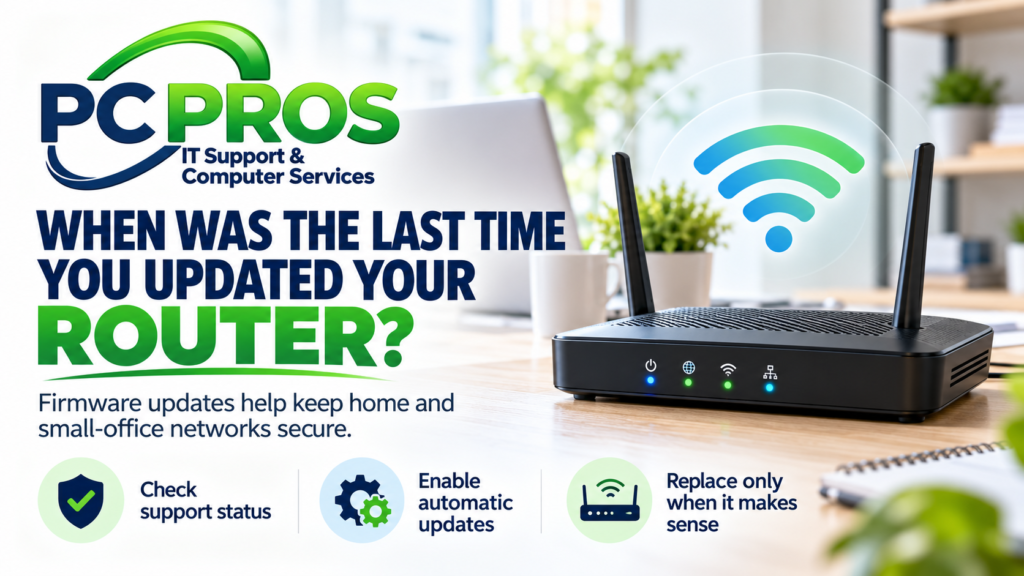
Your computer and phone aren’t the only devices that need software updates.
The router sitting in your home or small office has software of its own — called firmware — and manufacturers periodically update it to fix security problems, improve reliability, and correct bugs.
The problem is that routers tend to be forgotten.
Once the Wi-Fi is working, many people leave the same router running for years without ever checking whether its software is current — or whether the manufacturer still supports it at all.
A recent NETGEAR security advisory is a useful reminder. The company released fixes for several router and Wi-Fi extender models in October 2026, while also identifying some older devices that have reached End of Support and will no longer receive future security updates.
That doesn’t mean everyone needs to replace their router.
It does mean this is a good time to ask a simple question:
Is the device connecting your home or small office to the internet still being maintained?
Your Router Is More Than a Wi-Fi Box
Most people think of a router as the device that provides Wi-Fi.
It does that, but it also sits between your local network and the internet.
Your computers, phones, printers, smart TVs, security cameras, tablets, and other connected devices may all communicate through it.
In a home office or small business, the same router may also be carrying:
- Email and cloud applications
- Online banking
- Customer information
- Remote work connections
- Printers and scanners
- Security cameras
- VoIP phones
- Backup traffic
- Business files
Because the router plays such a central role, keeping its software current is an important part of maintaining the network.
What Is Router Firmware?
Firmware is software built into the router itself.
It controls things such as:
- Wi-Fi
- Network connections
- Security settings
- The router’s administrative interface
- Firewall functions
- Device management
- Performance and stability
Just like Windows or a web browser, router firmware can contain bugs or security weaknesses that manufacturers later discover and fix.
A firmware update may address those problems without changing anything noticeable about how you use the router.
Why This Matters Now
NETGEAR’s October 2026 security advisory lists several vulnerabilities affecting certain Nighthawk routers, cable modem/router combinations, and Wi-Fi extenders.
For supported products, NETGEAR has released updated firmware and recommends installing the latest version. Devices with automatic firmware updates enabled may already have received the fixes.
The advisory also includes several older models that NETGEAR now considers End of Support.
Examples include some versions of the:
- Nighthawk R7000 and R7000P
- RAX40
- RAX5
- R7300DST
- EX3700 Wi-Fi extender
- CBR40 Orbi cable modem/router
The important point isn’t that everyone using one of these devices is immediately in danger.
The bigger concern is what End of Support means going forward.
What Does “End of Support” Mean for a Router?
A router can continue working perfectly well after the manufacturer stops supporting it.
Your internet connection may still work.
Your Wi-Fi may still be fast.
Your printer may still connect.
That can make an old router seem completely fine.
But if the manufacturer is no longer providing security updates, newly discovered problems may remain unfixed.
That is similar to continuing to use an unsupported operating system: the device doesn’t suddenly stop working on the last day of support, but its ability to receive future security fixes has ended.
For that reason, an unsupported router is something worth evaluating rather than simply leaving in place indefinitely.
Does an Older Router Automatically Need to Be Replaced?
No.
Age alone isn’t enough to make that decision.
A several-year-old router that is still receiving firmware and security updates may be perfectly reasonable to keep using.
On the other hand, replacement becomes more sensible when a router:
- Has reached the manufacturer’s End-of-Support date
- No longer receives security updates
- Cannot support modern Wi-Fi security such as WPA2 or WPA3
- Frequently drops connections or needs rebooting
- Doesn’t provide adequate Wi-Fi coverage
- Has become a bottleneck for your internet connection
- No longer meets the needs of your home office or business
The right question isn’t:
“How old is my router?”
It is:
“Is this router still supported, secure, reliable, and appropriate for what I need?”
How Do You Know Which Router You Have?
Start by finding the manufacturer and model number.
This information is usually printed on a label on the bottom or back of the router.
You might see something such as:
NETGEAR RAX50
or another combination of letters and numbers.
Once you know the exact model, visit the manufacturer’s official support website and search for it.
Look for:
- The latest firmware version
- Firmware release dates
- Security advisories
- End-of-support information
- Instructions for automatic updates
Be careful when searching for firmware online.
Download router firmware only from the manufacturer or another source the manufacturer specifically directs you to use.
Check Whether Automatic Updates Are Available
Modern routers increasingly support automatic firmware updates.
If yours does, enabling that feature can make keeping the device current much easier.
NETGEAR, for example, specifically recommends enabling automatic firmware updates on supported devices because those updates can contain security fixes, bug fixes, and other improvements.
Other router manufacturers have their own update procedures.
Some devices update automatically.
Others require using a smartphone app or logging into the router.
Some older models require downloading a firmware file and installing it manually.
The exact process depends on the manufacturer and model.
What If Your Router Came From Your Internet Provider?
If your router or gateway came from your internet provider, the situation may be different.
Providers such as cable or fiber companies often manage firmware updates themselves.
In that case, you may not have a manual firmware-update button at all.
If you’re unsure, contact your internet provider and ask:
- Is this router or gateway still supported?
- Does the provider automatically install firmware updates?
- Is there a newer model available?
- Is my current equipment still appropriate for my internet service?
You don’t necessarily need to buy a new router simply because you’ve had the provider’s equipment for several years.
First determine whether it is still supported and maintained.
A Few Other Router Settings Are Worth Checking
Firmware isn’t the only thing that matters.
The Federal Trade Commission recommends several basic steps for securing home Wi-Fi networks.
Use WPA2 or WPA3 Security
Your wireless network should use WPA2 or WPA3 encryption.
If an older router supports only outdated options such as WEP or the original WPA, updating the firmware may help.
If modern encryption still isn’t available, replacement is worth considering.
Change Default Administrative Credentials
The password used to manage the router should not be left at a factory default.
Use a strong, unique administrative password.
This is separate from the password people use to connect to Wi-Fi.
Review Features You Don’t Need
Some routers include features such as remote administration that allow the router to be managed from outside the local network.
If you don’t use those features, leaving them disabled reduces unnecessary exposure.
Small Offices Should Treat the Router Like Business Equipment
In a small office, the router can easily become one of those devices that belongs to everyone and therefore gets maintained by no one.
That can continue for years.
A business may replace computers several times while leaving the same network equipment in place because it still appears to work.
It is worth periodically documenting:
- Router manufacturer and model
- Current firmware version
- Support status
- Administrative credentials
- Internet-provider information
- Wi-Fi security configuration
- Connected network equipment
This doesn’t need to become an elaborate IT project.
It simply ensures that someone knows what equipment the business depends on.
Don’t Replace Equipment Just Because Something New Exists
New Wi-Fi standards and faster routers arrive regularly.
That doesn’t mean everyone needs the newest model.
If your existing router:
- Is still supported
- Receives security updates
- Provides reliable coverage
- Supports modern Wi-Fi security
- Handles your internet connection adequately
- Meets the needs of your devices
there may be no compelling reason to replace it.
PC Pros takes the same approach with networking equipment that we take with computers:
Replace something when there is a good reason — not simply because something newer exists.
When Was the Last Time You Checked Your Router?
Most people know whether Windows or their phone is asking for an update.
Far fewer know whether their router has received one.
Take a few minutes to identify your router and check the manufacturer’s support page.
If it is still supported, make sure the firmware is current and enable automatic updates when appropriate.
If the manufacturer has stopped providing security updates, that doesn’t mean you need to unplug the router immediately.
It does mean it is worth planning what comes next.
Need Help With Your Home or Small-Office Network?
If you’re unsure whether your router is current, your Wi-Fi coverage is unreliable, or your home office or small business has outgrown its existing network equipment, PC Pros can help.
PC Pros provides router setup, Wi-Fi troubleshooting, network support, connectivity assistance, and practical upgrade recommendations for home offices, small businesses, and residential customers throughout Virginia Beach and nearby areas.
We can help determine whether an existing router simply needs an update or configuration change — or whether replacing it actually makes sense.
Learn more about PC Pros computer, network, and Wi-Fi support.